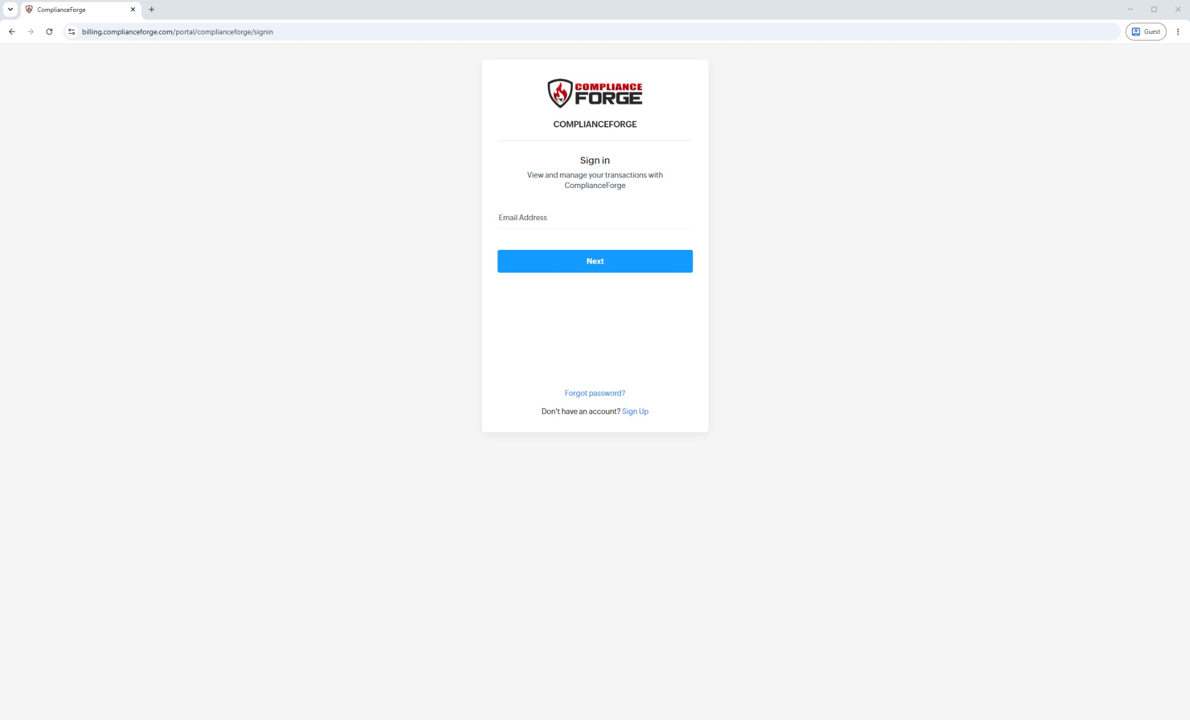
- Purchased on or after July 1, 2026: access already exists. Sign in at billing.complianceforge.com/portal/complianceforge.
- Purchased before July 1, 2026: request an invite from the portal Sign Up page, using the email address on your original order.
- The Sign Up page rejects any address that is not already on an account, and it does not create a new one.
- Your order history appears immediately once you complete the invite. There is no waiting period.
- Contacts cannot be added or removed from inside the portal. Use the Add or Update Account Contacts form.
- Contact changes are reviewed within one business day and may be verified with an existing representative on the account.
If You Purchased After July 1, 2026
Portal access is created automatically when your order is placed, so there is nothing to request.
- Go to billing.complianceforge.com/portal/complianceforge.
- Enter the email address you used to place the order and click Next.
- Enter your password.
If you have not set a password yet, or cannot remember it, use the Forgot password link on the sign in screen.
If You Purchased Before July 1, 2026
Customers who bought from us before the migration were not given portal logins automatically. You can request access yourself.
- Go to billing.complianceforge.com/portal/complianceforge and click Sign Up at the bottom of the sign in screen.
- Enter the email address associated with your original purchase. This is the part that matters, and the next section covers what happens if it is rejected.
- Enter the CAPTCHA text shown on screen.
- Click Sign Up.

You will receive an invite email. Follow the link in it to finish setting up your login.
Once you are in, your account is already populated. Previous order history, invoices, receipts and payment records are there immediately. There is no waiting period and nothing further to request.
What Does "The Email You Entered Is Not Associated With ComplianceForge" Mean?
If the Sign Up screen returns the message "The email you entered is not associated with ComplianceForge, please contact support@complianceforge.com for more details," it means the address you typed does not match a contact on any account in our records. No account is created when this happens, so you can safely try again with a different address.
What If A Colleague Placed The Order?
This is common with organizational purchases and it is straightforward to resolve. Your organization's order history, documentation and renewal records are tied to the contacts registered with ComplianceForge, so you need to be added as a contact before you can sign in.
There are a few ways to do that. Submit the Add or Update Account Contacts form, which is the faster route, ask the original purchaser to request that you be added, or to contact us on directly to gain access.
Most requests are reviewed within one business day. For your organization's security, we may verify a change by contacting an existing representative on the account before we make it. Once you are added you will receive a portal invitation, which gives you access to invoices, quotes and account records.
How Do I Add Or Remove People On My Account?
Contacts cannot be added, changed or removed from inside the portal. This is deliberate, so that access to your organization's purchase records and documentation cannot be granted without verification.
To add a new contact, update an existing one, or remove somebody who has left your organization, use the Add or Update Account Contacts form. You will be asked for your formal company name, your name and email address, the type of request, and the contact's name and email address.
Removing departed employees promptly is worth building into your offboarding checklist. Portal access includes your organization's invoices, quotes and account statements, so a former employee who remains a contact retains visibility of your purchasing records.
How Do I Reset My Password?
Use the Forgot password link on the sign in screen at billing.complianceforge.com/portal/complianceforge and follow the instructions sent to your email address.
If the reset email does not arrive, check your spam or quarantine folder first, since corporate mail systems sometimes filter messages from a sending domain they have not seen before. If it still has not arrived, contact us.
Contact ComplianceForge
If you have any questions regarding ComplianceForge's products or are curious about any of the content on our site, please feel free to contact us, and we are happy to help! If you want to add account administrators for product notifications, you can manage account contacts here.
You can contact us by pressing the button below to direct you to our contact form, or you can contact us at:
- Phone: +1-307-241-8740
- Email: support@complianceforge.com
Frequently Asked Questions (FAQs)
Here are answers to common questions about accessing your customer account: